Move your Pinterest collection to Eagle and keep your references useful
Move your Pinterest collection to Eagle and keep your references useful
Years of Pinterest saves reflect the choices you have already made about which images were worth keeping.
You can make that collection more useful outside Pinterest without rebuilding it all at once. Start with a smaller board relevant to current work or one you return to often. Import its images into an Eagle library, then check whether you can find the references you need and understand why you saved them. Use the result to decide whether moving more is worth the effort. You can keep using Pinterest to discover new ideas.
Why your Pinterest collection starts to feel less reliable over time
A long-running Pinterest collection can present three different problems, each calling for a different action:
- You cannot find a saved Pin: Check the account, board, and content conditions that may affect where it appears.
- You have the image but its source is unclear: Follow the link and verify the original page.
- You have many references but cannot choose one for the work: Recall why you saved them and what you chose them for.
Pinterest’s guidance for missing Pins or boards starts with checking whether you are using the right account, whether a board is archived, and whether you are looking in the right board tab. It also covers deleted or removed content. A missing Pin alone does not establish that the creator deleted the original work.
Source context is a different problem. A Pin can connect an image, a Pinterest page, and an external destination. Saving a local copy keeps the image you acquired. If the creator, background, or surrounding text matters when you use it later, also save the verified page or source details while they are available. Those details help explain the reference beyond what the image alone shows.
As a collection grows, finding the right reference becomes another problem. A board called “UI inspiration” might contain a product grid, a dense comparison list, and a checkout screen. Months later, a new brief may call for a scannable product list. The board still contains useful candidates, but it may not tell you which image you saved for product-name hierarchy, which one you kept for photography, or which layout you rejected for narrow screens.
Pinterest already provides boards and sections and lets you search saved Pins. Those tools may be enough when your collection remains easy to navigate. The extra work becomes useful when you need to search across those groupings or remember why you kept a reference.
Some people also want more control over repeated or AI-modified recommendations. Pinterest labels some AI-modified content and provides settings to see less AI content in some contexts. Choosing to see less AI content does not remove it entirely. An AI label or its absence does not tell you whether a reference suits your work. Keeping a file locally, or knowing it is non-AI, does not settle that question either. Check the composition, information hierarchy, and details you actually need, then record what makes the image useful.
An Eagle library lets you manage image copies you have acquired and the context you record for finding and using them again. Start with the references worth maintaining, together with the source and selection reasons you will need later.
Build on the references you’ve already chosen
Part of a reference collection’s lasting value comes from the choices you have already made. An image copy preserves the visual material; a verified source and a short note can also preserve why you kept it.
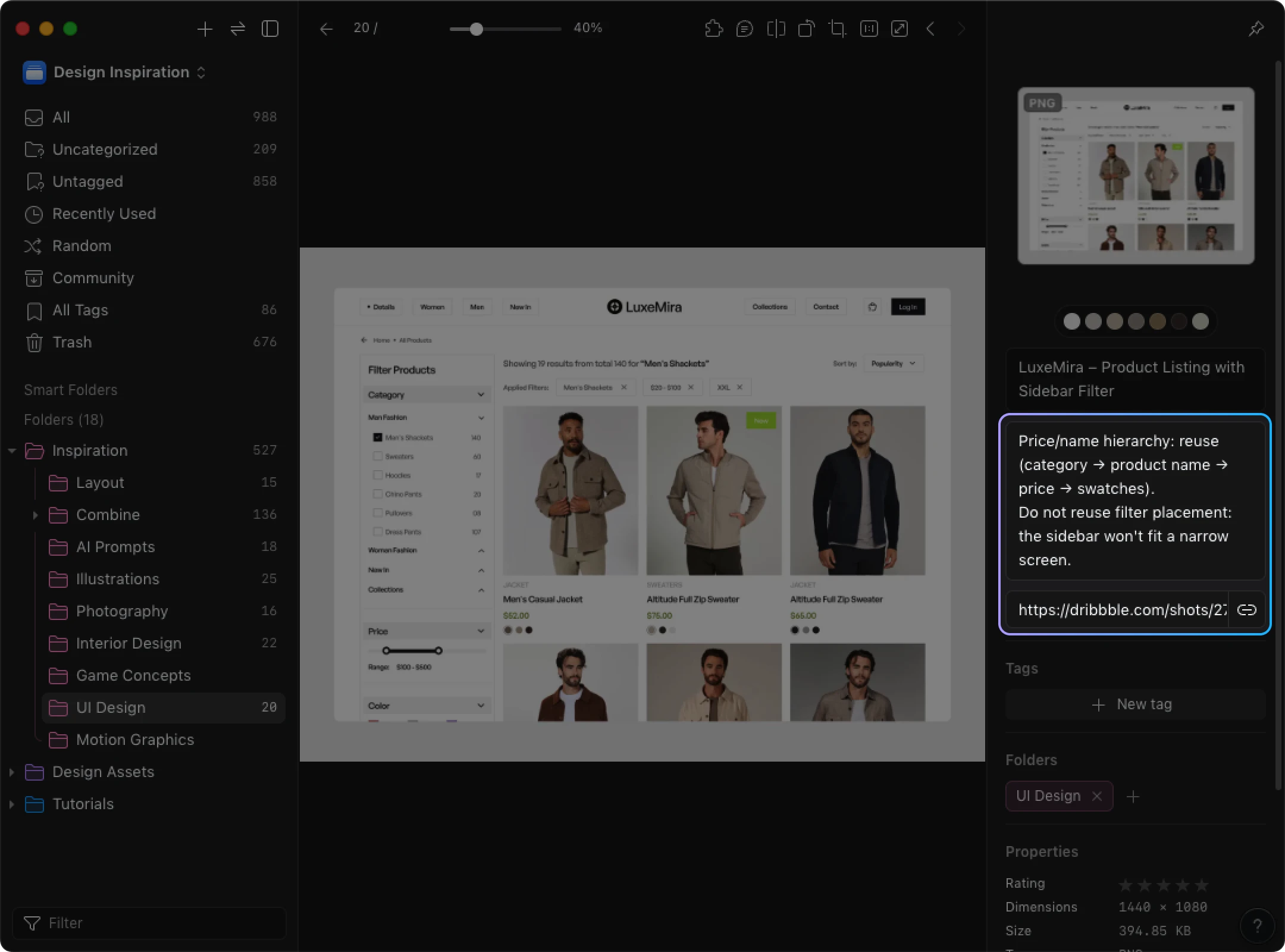
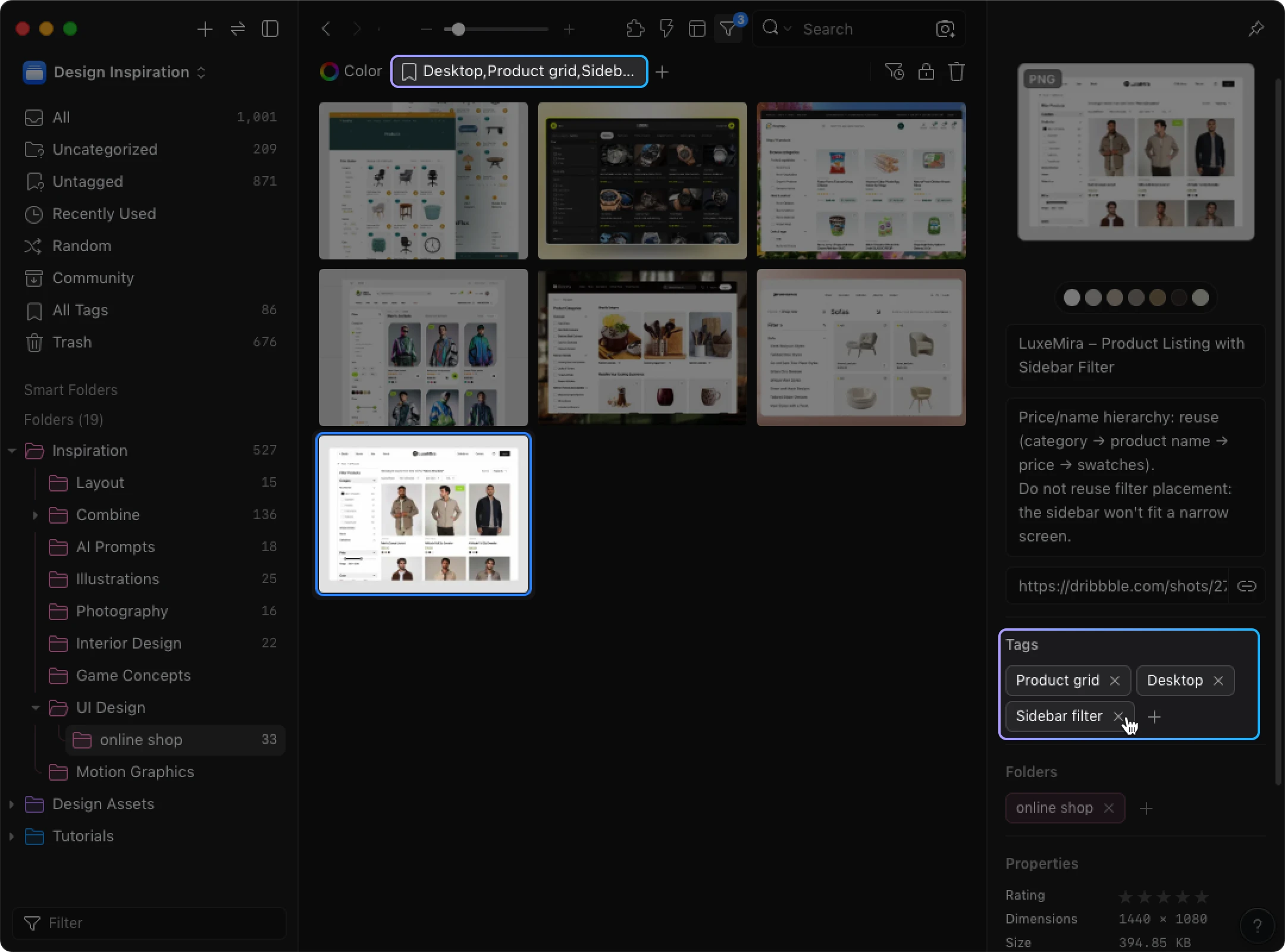
Consider a UI designer comparing product-list screens. One product grid has a clear hierarchy between the product name and price, but its sidebar filter would not work well on a narrow screen. Another list makes dense specifications easier to compare but minimizes the photography needed for the current brief.
Instead of treating either screen as a complete answer, the designer can keep the first for its hierarchy and record a note such as “price/name hierarchy; do not reuse the sidebar filter on narrow screens.” The second can remain a reference for dense comparison. On a later project, those notes explain the earlier choice. If the next brief needs a compact mobile filter, the designer can search specifically for that missing piece rather than re-evaluating the whole collection from scratch.
Pinterest boards can preserve useful selection decisions too, so this method does not require moving every saved Pin. Whether to move depends on how often you need to reuse those references and document the reasoning behind them.
In Eagle, references can include source information and notes or comments. Eagle's support documentation covers URL and note search and image comments.
Check the URL recorded for an imported image. If it is a Pinterest Pin URL, use it to revisit the Pin. Follow any external destination and record the verified original page separately when the creator or publication context matters. Before using a saved image in published work, check the relevant permission or rights separately.
Organize and find references around the way you work
To avoid creating another pile of images, distinguish a reference’s work context from traits that may be useful across projects.
In Eagle, folders can hold broad work areas, while tags can describe characteristics shared by references in different folders. Filters and Smart Folders can then retrieve combinations of those characteristics. Start with distinctions you expect to search for rather than labeling every possible detail.
An illustrator, for example, might keep packaging studies and editorial concepts in separate folders. A packaging reference could still carry the tags “limited palette” and “hand lettering,” making it relevant to a later editorial project.
For UI work, a screen might sit in a commerce folder while carrying tags such as “product grid,” “desktop,” and “filter rail.” A later search can combine the work context with those traits instead of depending only on the folder where the screen was first saved.
Eagle documents folders, tags, and Smart Folders, as well as search and saved filtering options. A Smart Folder can save a combination you use repeatedly. Retrieve the matching candidates, compare them with the new brief, and decide which parts to keep and which missing references to find elsewhere.
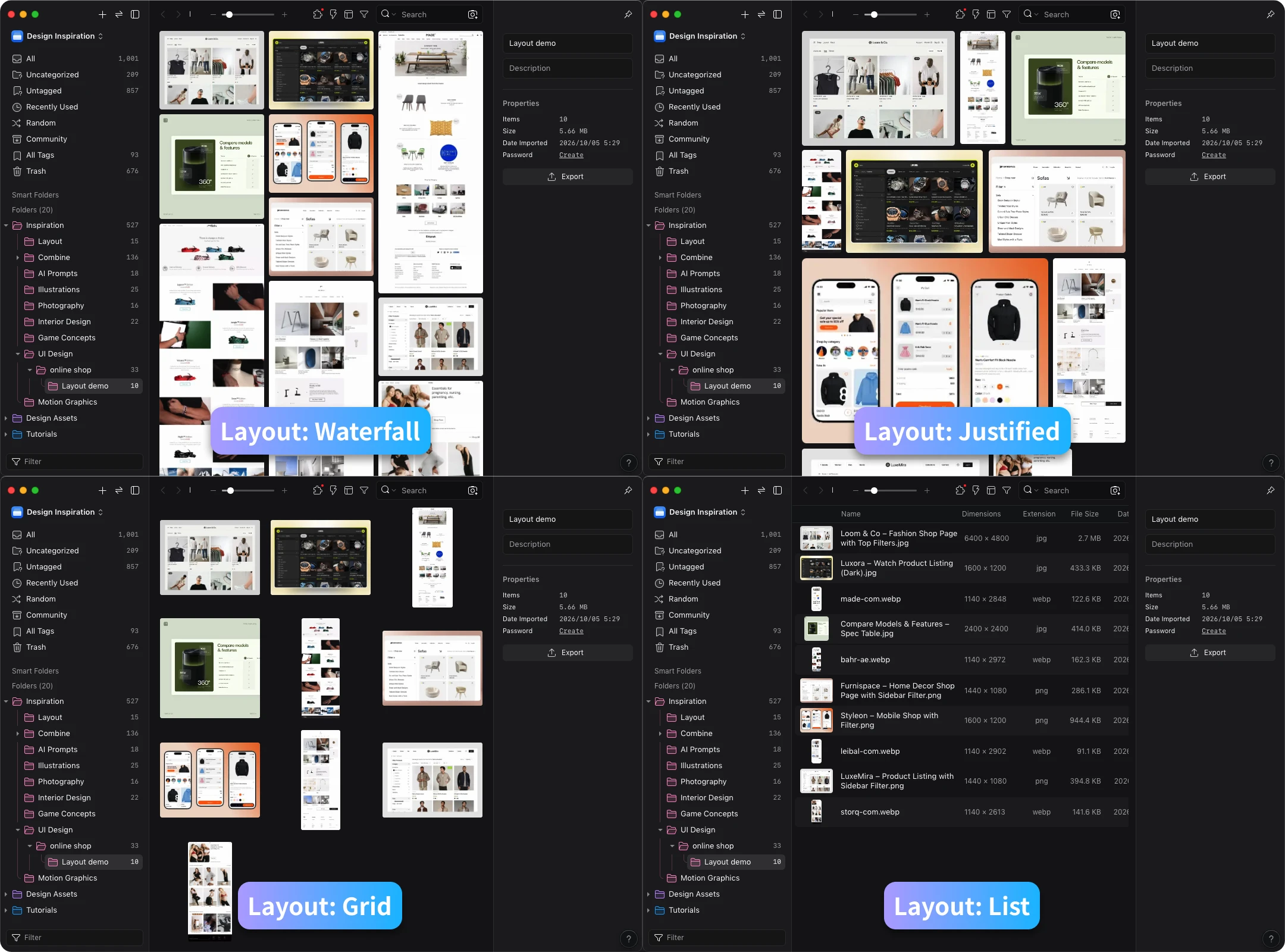
Eagle provides four layouts for inspecting the same reference set, and each emphasizes something different:
| Eagle layout | Useful when | What to watch for |
|---|---|---|
| Waterfall | You are reviewing long screenshots or images with varied shapes together. | Uneven rows can make aligned scanning less convenient. |
| Justified | You want aligned rows while keeping images uncropped. | Image sizes and row composition vary with the set. |
| Grid | You want fixed frames for quick scanning or selecting several items. | The fixed frames can make fine visual detail less prominent. |
| List | You need to compare file information or review items in sequence. | It provides less visual detail for judging the image itself. |
These uses follow Eagle's layout guidance. With the same collection of long product-page screenshots and smaller interface cards, Waterfall can make varied shapes easier to inspect, while List can help when the task shifts to checking item information. Eagle’s Grid and List layouts describe how you view files in the library. The product grid and specification list in the UI example describe the designs inside those files.
Pinterest also has sections and search, so both tools offer ways to organize references. Eagle becomes relevant when your selected references benefit from work-specific tags, combined search conditions, notes, or different ways of browsing the same set.
Pinterest or a local Eagle library? Understand the trade-offs
Pinterest boards and an Eagle library solve different parts of the reference workflow. Pinterest supports discovering, saving, and sharing ideas inside its service. An Eagle library gives you control over selected files stored in a library location you manage, together with your own organization and notes.
Base your choice on the references you need to revisit and the work you are willing to put into maintaining them. The two tools can also serve different parts of your workflow.
| Decision point | Pinterest boards | Downloaded images managed in an Eagle library |
|---|---|---|
| Storage and control | Saved Pins and board organization live in a Pinterest account and depend on continued access to the service. | Selected image files live in an Eagle library at a storage location you choose. Capacity depends on that storage. |
| Long-term preservation and backup | Boards retain your collection within Pinterest, while missing items may require checking account, board, or content conditions. | A local copy lets you revisit the saved image when a web page changes. Keep the file and library intact, and make and verify a separate backup. |
| Organizing, finding, and viewing | Boards, sections, and saved search support familiar visual groupings and retrieval. | Folders, tags, notes, filters, Smart Folders, and four layouts can organize a curated set around work-specific cues. Those cues still need to be created and maintained. |
| Access across devices and sharing | An online Pinterest account and board links provide access and sharing through Pinterest's features and settings. | Eagle does not provide built-in cloud sync. Cross-device access requires moving the library or arranging a third-party sync method. Sync is not an independent backup. |
| Discovery and reuse | Search and recommendations help you continue discovering ideas. | Eagle helps you revisit references you have already selected and documented; it does not replace Pinterest's discovery feed. |
If Pinterest already gives you the discovery, organization, and sharing you need, keeping the collection there may be the simpler choice. If you repeatedly need to retrieve a specific visual decision together with your own reasoning, try a smaller board in Eagle. Before moving more, check whether your notes and organization help you find useful references and recall why you chose them.
Using both is also reasonable: continue discovering on Pinterest, then move the references you expect to revisit into your Eagle library and document the details that matter to your work.
For a broader feature comparison, see Eagle vs. Pinterest. The focus here is maintaining an existing reference collection and starting the move without rebuilding everything at once.
Start moving your Pinterest collection to Eagle in small batches
Choose a smaller board that matters to current work or that you return to regularly. A real use case gives you something concrete to check after the import.
Before moving anything, note the board name, any sections you care about, and a few Pins whose source or purpose matters. Keep Pinterest available while you compare the imported result.
-
Import the smaller board’s images. Open Eagle, then open the Pinterest board in your browser. In the Eagle Browser Extension, choose Save Board’s Images. The command works on the open board. Choosing a smaller board first controls the size of your initial import. Eagle’s Pinterest import guide lists Eagle 3.0 and extension 2.6.0 or later. If the command is missing or the import fails, check the versions and the support guide before continuing.
-
Inspect what actually arrived. Compare important imported images with the Pins you noted before the move. Separately check what remains of video Pins, sections, and source links. Use the actual import results to choose which references you will maintain.
-
Add the context you need. Inspect recorded source links and verify the original page where needed. Manually add source details, a small folder structure, useful tags, and missing purpose notes. Then test retrieval with a real work cue, such as “desktop product grid with a filter rail.” Check that you can find the image and understand why you saved it.
-
Back up the whole Eagle library. Follow Eagle’s backup instructions to locate the library directory, copy the entire library folder to another device or drive, and confirm that the copy has finished.
-
Expand only after the batch proves useful to you. If important images or context are missing, check the Pinterest import support guide, try a smaller board, or pause. Keep the original Pinterest board while you resolve gaps. Deleting it is not part of completing the move.
Related Posts